Wednesday, September 12, 2018

IME Mode in MSCRM while creating new attribute


When you create a new attribute for a Microsoft Dynamics CRM entity and have to set the characteristics like data type, min-max values and schema name, you would have seen a property called IMEmode, I always use leave this with default setting i.e. auto as shown in the below screenshot-


What exactly the use this setting, we definitely should know the intention of each and every property while working with MS CRM and very careful while creating new Entity and the Attributes for it.

So let’s understand for what exactly the property we have to set.

This option occurs with Single Line of Text, Multiple Lines of Text and other attributes that are bound to input elements or text area element.

IME stands for Input Method Editor and it lets you to enter and edit Chinese, Japanese, and Korean characters. These Asian writing systems have more characters than can be encoded for a regular keyboard. The IMEs for these languages use sequences of base characters that describe an individual character or group of characters to enter a larger set of characters.

Base characters can be component letters from Hangul syllables, phonetic components for Japanese kanji characters, or various combinations for Chinese characters. We can use the IME mode option to quickly enter these characters and symbols into text boxes, avoiding the manual switch to IME mode that would otherwise be required.
Input Method Editors have two principle states, inactive and active. The inactive mode behaves like a regular keyboard and uses a limited set of characters. The active mode accepts Chinese, Japanese, or Korean characters.

The following IME modes are available:
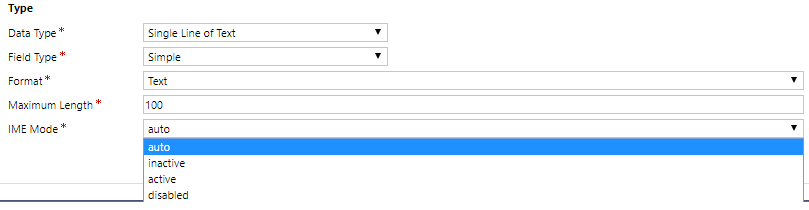


·     auto (default) - The IME mode is not affected with this choice.
·     active - All characters are entered in the IME mode, but you can still deactivate it. For name-related fields and addresses, the default is active for detailed forms.
·     Inactive - All characters are entered without using the IME mode, but you can still activate it. For datetime type fields, the default is inactive for detailed forms.
·     Disabled - The IME mode is disabled, and you cannot activate it. For number type fields (money, int, float), the default is inactive for detailed forms.

Wednesday, September 5, 2018

Important changes in Dynamics 365 (Version 9)


In recent versions of MS CRM there are lot of changes or modification done by Microsoft as well few things are get deprecated. Below are important changes done Dynamics 365 latest version for development point of view.

While development of the latest version we should be careful about deprecated methods of API. The deprecated client APIs will continue to be available and supported until they are officially removed from a future major release of Dynamics 365.
The changes listed below are not all of them, I am trying to list down here only those which we always use while development. Complete list is listed with the URL- https://docs.microsoft.com/en-us/dynamics365/get-started/whats-new/customer-engagement/important-changes-coming

Xrm.Page. context Changes

Deprecated API
Replacement API
globalContext.userSettings.getTimeZoneOffsetMinutes
globalContext.userSettings.userId
globalContext.userSetings.languageId
globalContext.userSettings.userName
globalContext.userSettings.securityRoles
globalContext.organizationSettings.isAutoSaveEnabled
globalContext.organizationSettings.languageId
globalContext.organizationSettings.uniqueName
No change in the method, but use "typename" instead of type for lookup attributes.


Grid Methods Changes
Deprecated API
Replacement API
Description
GridRow.data
GridRow is essentially a form context. This change unifies the interface of GridRow with formContext.
GridRowData.entity
GridRowData is form data. This change unifies the interface of GridRowData with formContextData.


Xrm.Utility Changes

Deprecated API
Replacement API
Description
Xrm.Navigation.openAlertDialog
The new signature is consistent with other APIs (openForm) and takes a new set of parameters for flexibility.
Xrm.Navigation.openConfirmDialog
The new signature is consistent with other APIs (openForm) and takes a new set of parameters for flexibility.
Xrm.Utility.getEntityMetadata
The isActivityType method is synchronous so it was suitable for ribbon rules. However, the replacement method, getEntityMetadata, is asynchronous, and is not suitable for ribbon rules.
Xrm.Navigation.openForm
Moving navigation actions to Xrm.Navigation
Xrm.Navigation.openForm
Moving navigation actions to Xrm.Navigation
Xrm.Navigation.openWebResource
Moving navigation actions to Xrm.Navigation
Note: This API returns VOID in Unified Interface.


New client APIs

Here is a list of new namespaces in this release that contains new and some existing methods that are moved under these namespaces for an enhanced object model design.

New Namespace
Description
Provides methods to use native device capabilities of mobile devices.
Provides methods to encode strings.
Provides navigation-related methods.
Provides properties and methods to use Web API to create and manage records and execute Web API actions and functions.


The following new APIs were introduced in the existing namespaces:

Namespace
New APIs
- OnLoad event and even handlers (addOnLoad and removeOnLoad)
- isValid
- Updated saveOptions in the formContext.data.save method to include a new value called saveMode to let the onSave event handlers know why the save is happening
- attributes collection
getEntityReference
isValid
isValid
setPrecision
event handlers for the OnLoad event (addOnLoad and removeOnLoad)
getAllowedStatusTransitions
getEntityMetadata
getGlobalContext
getLearningPathAttributeName
getResourceString
invokeProcessAction
lookupObjects
showProgressIndicator
closeProgressIndicator
refreshParentGrid

Silverlight (XAP) web resource is deprecated

The Silverlight (XAP) web resource is deprecated on the web client, and is not supported on the new Unified Interface introduced in the Dynamics 365 (online), version 9.0. Instead of Silverlight web resources, you must use custom controls created using the HTML web resources with HTML5 to create UI components to visualize and interact with data.


Monday, July 30, 2018

Call an external WCF service from a custom workflow or a plugin in MS CRM


Call an external WCF service from a custom workflow or a plugin in MS CRM

As we know very well custom workflow and plugins are the class libraries and obviously there is no configuration file associated with class libraries projects and that is the reason we have to follow below approach to call an external WCF service from the plugin or workflow.

First of all a proxy file needs to be generated using svcutil.exe. This command needs to execute from the command prompt. To generate the proxy file, navigate to the location of the svcutil.exe on the machine (C:\Program Files (x86)\Microsoft SDKs\Windows\v10.0A\bin\NETFX 4.7.2 Tools) and execute the following:

C:\Program Files (x86)\Microsoft SDKs\Windows\v10.0A\bin\NETFX 4.7.2 Tools>svcut
il.exe /language:cs /out:proxy.cs /config:app.config <SVC Service>

After executing the command a proxy.cs file is generated at the location of the svcutil.exe. This proxy.cs should be included in the workflow or plugin solution. 

Once the generated proxy.cs file added into the project, for the bindings of WCF service below code should be written where you wanted to call the service.

 
  BasicHttpBinding serviceBinding = new BasicHttpBinding();
  serviceBinding.Name = "<Binding Name>";
  serviceBinding.Security.Mode = BasicHttpSecurityMode.None;
  serviceBinding.Security.Transport.ClientCredentialType = HttpClientCredentialType.None;
  serviceBinding.Security.Transport.ProxyCredentialType = HttpProxyCredentialType.None;
  serviceBinding.Security.Message.ClientCredentialType = BasicHttpMessageCredentialType.UserName;
  EndpointAddress endPointAddress = new EndpointAddress("http:<ServiceURLPaTH>.svc");
  ServiceClient serclient = new ServiceClient(serviceBinding, endPointAddress);

Now you can use Serclient object to call the service methods.

Hope this will be helpful.

Monday, July 23, 2018

Assembly must be registered in isolation Error-

Recently my QA team has encountered the error – “Assembly must be registered in isolation” while importing the solution which contains the plug in assemblies, although everything was fine in development environment.


The reason behind the error is the user was not a Deployment Administrator, if the user is only a System Administrator in the organization, they will be forced to register plugins in the sandbox isolation mode.

Thank you.

Friday, July 20, 2018

Call After Save Event in MS CRM 365 Form


We have recently faced a problem while reloading the form after save MS CRM Entity form. Initial thought was like this is pretty simple functionality we have to achieve and will not take more time but unfortunately when we started implementing it we got stuck in iterative problems.

 We did tried using the below code which called onSave of the form-

onSave()
{
    Xrm.Page.data.entity.save();
    setTimeout(function () {
        Xrm.Utility.openEntityForm(Xrm.Page.data.entity.getEntityName(), Xrm.Page.data.entity.getId());
    }, 3000);
}

But unfortunately it did not worked, we even tried the same code on the success and failure callbacks of the Xrm.Page.data.entity.save() but there is no luck, most of the time it executed fail callback of the method.

After spending some time on the Google we found the below solution and it worked 100 percent-

First of all we have created a helper function to set or remove listener to internal CRM events:

function addAfterEventHandler(eventId, handler) {
    this.parent.Mscrm.TurboForm.Control
    .CommandService.get_instance()
    .addAfterCommandExecutionHandler(eventId, handler);
}
function removeAfterEventHandler(eventId, handler) {
    this.parent.Mscrm.TurboForm.Control
    .CommandService.get_instance()
    .removeAfterCommandExecutionHandler(eventId, handler);
}

After creating the helper function we have added the listener to the after save event-

addAfterEventHandler(this.parent.Mscrm.InlineCommands.Save, function () {
    Xrm.Utility.openEntityForm(Xrm.Page.data.entity.getEntityName(), Xrm.Page.data.entity.getId());
});


We created the web resource of the above code and loaded the same on the form of entity where we required, that's all whenever you will save the changes for the particular form it will reload the page.


Wednesday, July 4, 2018

MS CRM Owner Teams vs Access Teams

In Microsoft Dynamics CRM 2011, the Team concept that was used is now known as Owner Teams in Microsoft Dynamics CRM 2013. The new version of CRM also introduces a new team type called Access Teams. Two fundamental differences between an Owner Team and an Access Team involve ownership and sharing. As the name implies, a member of an Owner Team inherits permissions to the records because the team owns the record. Access Teams are different in that permissions are granted to the records via sharing.
Now that there are two team types, when should you use one over the other? Since owner teams are a known concept with the two previous releases of CRM, only the best practice of when to use them will be defined in comparison to access teams.
Owner Teams
  • Best where teams access high volumes of data, via ownership or business unit access
  • When a security role is required to access records scoped by a business need
  • Teams used as service scheduling resource must be owner teams
Access Teams
  • Rapidly changing team memberships
  • Allows for >1,000 team memberships per user
  • Individual record based access
  • Owner of the record allowed to define access to other users
  • Can accommodate varying levels of group access types to records

QueryExpression vs. FetchXML in MS CRM with C#

Microsoft Dynamics CRM (Customer Relationship Management) is a powerful platform that helps organizations streamline their business processe...