Tuesday, October 5, 2021

Connector in Power Automate

 There are 3 ways to deploy Power Automate flows-

       1.       Can be done using exporting it using package

2.       To Adding it in Solution and Exporting the solution and importing it in target organization

3.       Addition the flow in solution and creating Connection Reference in the solution.


If we go with first two options we have to update the connection settings in every flow as well in all the steps where the connection reference is, so better approach is to use the connection reference.


Here are the steps which I have followed to create flow with reference to Connection Reference.


1.       Created a new solution in Dev7- PowerAutomateConnection

2.       Using add new Item option added new Connection Reference with below shown details in screenshot-


3.       Now created New Test flow in this solution which has took automatically reference of the Connection Reference which I have created, please refer below screenshot.


4.       Once the flow is tested exported the solution as managed solution.

5.       Login to UAT2 power automateà got o Solution and click on Import.

6.       After selecting the managed solution import and click next it ask to update the connection, if there is not any existing Dataverse connection created, click on New Connection and create the new Dataverse Connection.
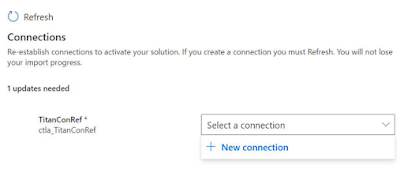


7.       Once the creation has been created click on the refresh button the new connection will appear in the drop down, select it and click on import as shown in following screenshot.


8.       That’s it once the solution has been imported you don’t need to do update any connection reference in flow and its steps.

9.       Now the flows are ready to execute.

Monday, October 4, 2021

Customize Rich Text Edit in MS CRM 365

Microsoft has introduced the Rich Text Editor Control in Recent version which is very useful and powerful text editor which we can use on the form. I have recently implemented and customize it as per the client requirement, please check below details for it.


As client wanted to format the text on the form which is get fulfilled using the Rich Text Edit control and when we use the Rich Text Edit Control it get render with the default formatting Toolbox as shown in below image.


Now the problem is client wanted to customize the Toolbox of the Rich Text Edit control e.g. in our case client don’t wanted change the Font and Font Size to the user and that’s why asked me to remove Font and Font size from the Rich Text Editor Toolbar.


Well, I have tried to find out is there any setting in control properties in a form designer but there is no such kind of settings available for the control.


After checking the documentation provided my Microsoft for the Rich Text Editor Control I found that it can be done using RTEGlobalConfiguration.json web resource, this web resource contains all configuration settings for the Rich Text Box Edit Control.


As per our requirement I have remove the Font and Font Size Option from the toolbox property in this web resource.

"toolbar": [

      [ "CopyFormatting" ],

      [ "Bold" ],

      [ "Italic" ],

      [ "Underline" ],

      [ "BGColor" ],

      [ "TextColor" ],

      [ "BulletedList" ],

      [ "NumberedList" ],

      [ "Outdent" ],

      [ "Indent" ],

      [ "Blockquote" ],

      [ "JustifyLeft" ],

      [ "JustifyCenter" ],

      [ "JustifyRight" ],

      [ "Link" ],

      [ "Unlink" ],

      [ "Subscript" ],

      [ "Superscript" ],

      [ "Strike" ],

      [ "Image" ],

      [ "BidiLtr" ],

      [ "BidiRtl" ],

      [ "Undo" ],

      [ "Redo" ],

      [ "RemoveFormat" ],

      [ "Table" ]

    ]


Once it is done save the web resource and publish, that’s it now if you check the Rich Edit Control on form it will render without Font and Font Size tools in toolbar.


For more details please refer-


https://docs.microsoft.com/en-us/powerapps/maker/model-driven-apps/rich-text-editor-control#use-the-webresource-for-organization-wide-changes


QueryExpression vs. FetchXML in MS CRM with C#

Microsoft Dynamics CRM (Customer Relationship Management) is a powerful platform that helps organizations streamline their business processe...